
Product Modules
Understanding your dashboard KPIs and metrics
A breakdown of each KPI card on your dashboard — what it measures, how it is calculated, and what to do when a number looks off.
Your dashboard displays seven KPI cards that give you an instant read on the key dimensions of your business. This page explains what each metric represents, where the data comes from, and how the value is formatted so you know exactly what you are looking at.
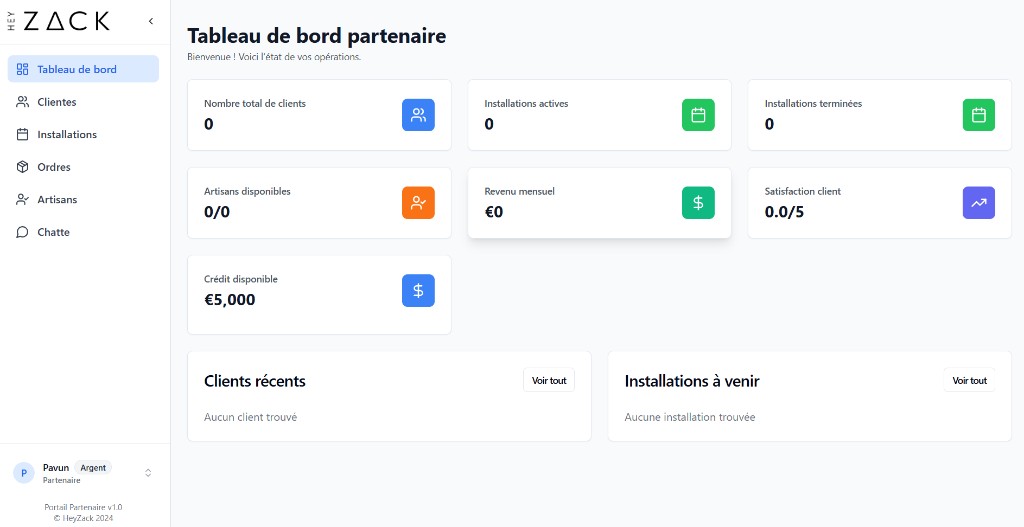
Total Customers
What it shows: The total number of customers registered in your partner account.
This count includes every customer record in your account regardless of their status (active or inactive). It is fetched from your customer database and reflects the total at the time the page loaded.
Tip
If this number seems lower than expected, check the Customers section — some records may be marked as inactive and still count toward this total.
Active Installations
What it shows: The total number of installation jobs recorded in the system.
This is a count of all installations linked to your account, across all statuses. It gives you a sense of total job volume rather than only jobs currently in progress.
Note
"Active" in this card title refers to the full installation pipeline, not just jobs with an "in progress" status. To see only completed jobs, refer to the Completed Installations card.
Completed Installations
What it shows: The number of installations that have been approved by the customer.
An installation is counted as completed only when its status reaches Customer Approved — the final stage where the customer confirms the work was carried out to their satisfaction. It is the most reliable signal that a job is fully closed.
Available Handymen
What it shows: Your technician availability as a ratio — available technicians out of your total roster.
The format is available/total. For example, 3/5 means three of your five technicians are currently available to take jobs. A technician is counted as available when their availability status is set to Available.
Tip
If the available count is lower than expected, go to the Handymen section to review individual availability statuses and update them as needed.
Monthly Revenue
What it shows: Your total revenue for the current month, displayed in EUR.
This value is pulled from your partner tier information and reflects the sales volume your account has generated in the current billing month. It is formatted as a whole-number EUR amount (for example, €4,200).
Monthly Revenue is also the primary input used to calculate your partner tier and progress toward the next tier. See Partner tiers: benefits, revenue thresholds, and credits for more detail on how revenue thresholds determine your tier.
Customer Satisfaction
What it shows: The average customer rating across all rated installations, expressed as a score out of 5.
Ratings are collected from customers after their installations reach CUSTOMER_APPROVED status. The average is calculated across all rated installations in your account. The card displays the value to one decimal place — for example, 4.3/5.
If no ratings have been collected yet, the card displays N/A.
Available Credit
What it shows: Your current partner credit balance in EUR, which you can apply to Shopify orders.
Partner credits are earned through the HeyZack partner program based on your tier and sales performance. The balance shown is the credit available to use right now. It is denominated in EUR and formatted as a whole-number currency value.
When your balance is greater than zero, you can use the Use Credit action on this card to apply your credits toward an order. See Partner tiers: benefits, revenue thresholds, and credits for a full walkthrough of how to apply credits.
Warning
Credits that are applied to an order are deducted from your balance immediately. Make sure you enter the correct cart total and credit amount before confirming — this action cannot be undone from the dashboard.