
Documentation
Get started with the HeyZack Partner Portal
Learn how to sign in to the HeyZack Partner Portal and get oriented with your dashboard and key sections.
The HeyZack Partner Portal gives you everything you need to run your smart home installation business in one place. This guide walks you through signing in for the first time and completing the core workflow so you can start managing real jobs straight away.
Note
Your partner account is created by HeyZack when your partner agreement is activated. You will receive your login credentials by email. If you haven't received them, contact your HeyZack account manager before continuing.
Sign in to the portal
Go to the sign-in page
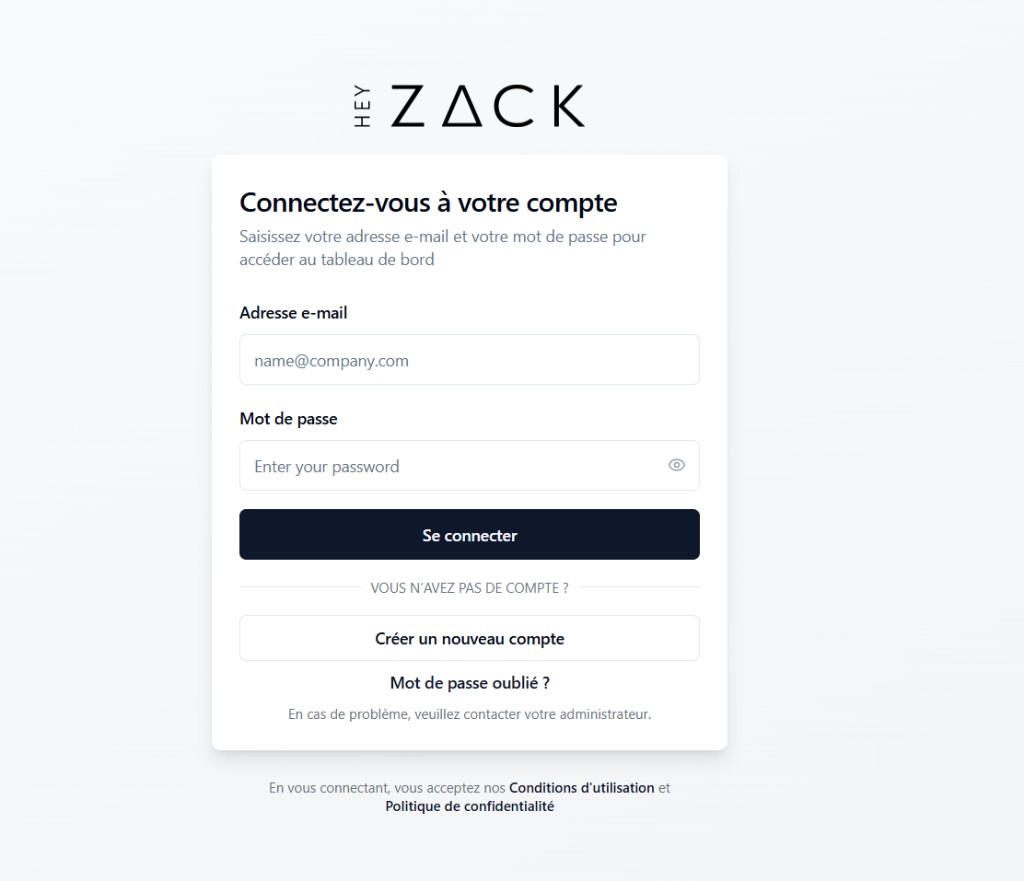
Open the HeyZack Partner Portal in your browser and navigate to the sign-in page. You'll see the HeyZack logo and a form asking for your email and password.
Enter your credentials
Type the email address and password that were sent to you when your account was activated. Click the eye icon next to the password field if you want to check what you've typed.
Click Sign in
Click Sign In. If your credentials are correct, the portal redirects you to the dashboard.
Warning
If this is your first time signing in, the portal may prompt you to set a new password before you can continue. Follow the on-screen steps to create a permanent password. See Reset your password on first login for details.
What you see when you first log in
After signing in, you land on the Dashboard — your operational overview for the day. Here's what you'll find:
KPI summary
At-a-glance metrics for active installations, completed jobs, and revenue for the current period.
Upcoming installations
A list of jobs scheduled for the next few days, with the assigned handyman and status for each.
Partner tier
Your current partner tier and progress toward the next tier based on monthly revenue.
Recent activity
A feed of recent updates across customers and installations.
The left sidebar gives you access to every section of the portal: Customers, Installations, Handymen, Inventory, Reports, and Settings.
What to do next
Now that you've completed your first workflow, explore the rest of the portal: