
Get started
Dashboard: your smart home operations overview
Get a real-time snapshot of sales, leads, installations, partners, and recent orders the moment you open the Heyzack CRM.
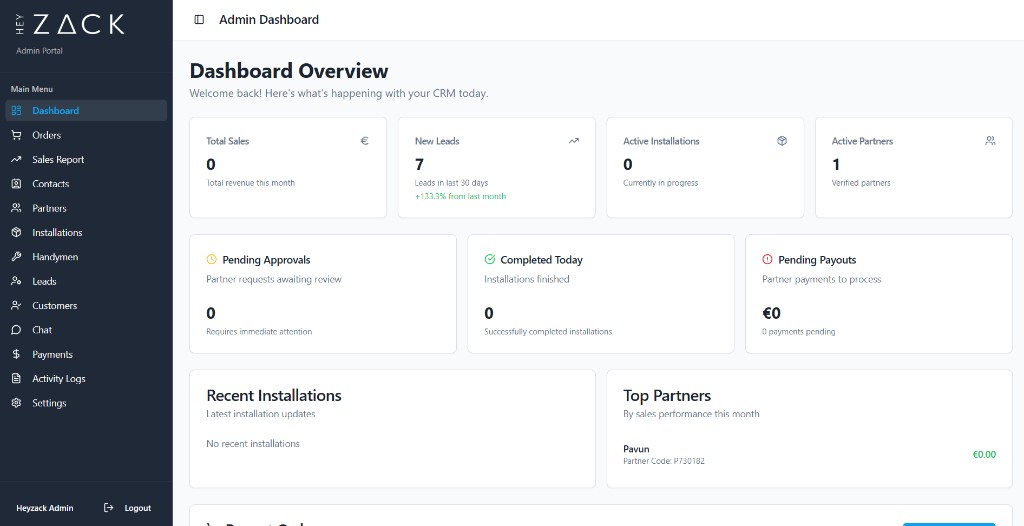
The dashboard is the first screen you see after logging in. It brings together the most important numbers across your entire operation — sales volume, pipeline activity, active installations, and pending financial actions — so you can orient yourself quickly and decide where to focus your attention.
Key metrics
Four stat cards run across the top of the dashboard. Each one pulls live data and compares it against the previous period.
Total Sales (€)
The total sales volume generated across all partners during the current period. A trend percentage appears below the value — green means growth, red means a decline compared to the prior period.
New Leads
The number of leads created during the current period. The trend indicator shows whether lead volume is increasing or decreasing relative to the previous period.
Active Installations
A count of installations that are currently in progress — meaning they have been scheduled, assigned, or started but not yet completed or cancelled.
Active Partners
The number of partners who have recorded activity during the current period. Use this to monitor partner engagement at a glance.
Activity cards
Below the stat cards, three summary cards give you an operational pulse check.
Pending Approvals
The total count of partner and handyman registration requests that are waiting for your review. Follow up on these promptly so new partners and handymen can start working.
Completed Today
The number of installations marked as completed during today's date. Compare it against your expected daily throughput to catch delays early.
Pending Payouts
The total amount (in €) of partner commissions that have been earned but not yet paid out. This figure is calculated from approved installations and rises until you process payments.
Recent Installations
The Recent Installations card shows the four most recently updated installations. Each row displays the installation title, the customer's name, and a colour-coded status badge so you can spot anything that needs attention without navigating away from the dashboard.
Click any installation row to open the full installation detail view.
Top Partners
The Top Partners card ranks your partners by total sales value. Up to four partners appear, listed from highest to lowest revenue, with each partner's name, partner code, and total sales amount in €. Use this to identify your highest-performing relationships and replicate what's working.
Recent Orders
The Recent Orders table pulls the last five orders from the sales report. Each row includes:
| Column | Description |
|---|---|
| Order # | The unique order number, prefixed with # |
| The customer email address linked to the order | |
| Address | The shipping or service address |
| Amount | The order total |
| Status | Fulfilled, Unfulfilled, or another status badge |
| Actions | An Update button to change the order status |
You can create a new order directly from the dashboard by clicking the Create Order button in the top-right of the orders section.
Tip
Open the dashboard at the start of each day before you check anything else. The three activity cards — Pending Approvals, Completed Today, and Pending Payouts — give you an immediate list of things that need action, and the Recent Orders table lets you handle quick status updates without switching pages.