
Get started
Process and track partner commission payouts
Create, filter, and track partner commission payouts by status, partner, and date range from the Heyzack crm Payments section.
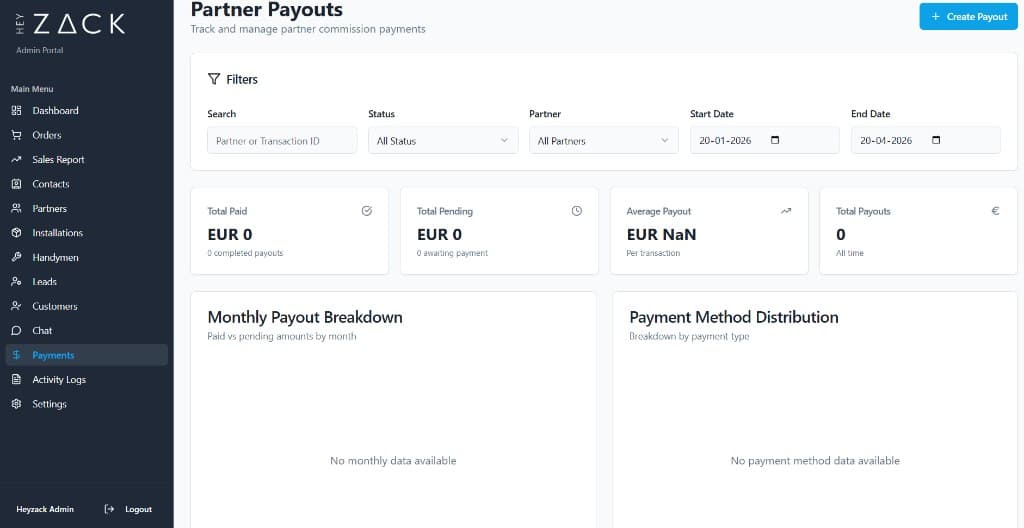
The Payments section gives you full control over partner commission payouts. You can see outstanding and completed payments at a glance, create new payout records tied to approved installations, and drill into individual transactions to review the full breakdown. All amounts are displayed in euros (€).
Payout statistics
Four stat cards at the top of the page summarize your payout activity for the selected date range:
Total Paid
The total amount disbursed, along with a count of completed payouts, within the active date range.
Total Pending
The total amount and count of payouts that have been created but not yet sent to partners.
Average Payout
The mean payout value per transaction across all payouts in the current date range.
Total Payouts
The overall number of payout records created across all time.
Browsing payouts
Use the filter bar to narrow down which payouts appear in the table.
- Search — type a partner name or transaction ID to filter results instantly.
- Status — choose All, Pending, Paid, or Cancelled.
- Partner — select a specific partner from the dropdown to see only their payouts.
- Date range — set a start and end date; the stat cards and charts update to match the selected period.
Creating a payout
Click Create Payout in the top-right corner to open the payout form. Only installations with a customer_approved status are eligible.
Select an installation
Choose the completed, customer-approved installation this payout relates to. The partner field fills in automatically based on the installation you select.
Confirm the partner
The partner is pre-filled from the installation. If no installation is selected, you can choose the partner manually.
Enter the installation amount and commission percentage
Enter the total installation value and the commission percentage (default 15%). The CRM calculates the payout amount in real time.
Choose a payment method
Select from Bank Transfer, Check, PayPal, or Stripe.
Add optional details
Optionally enter a transaction ID (for your reference) and any notes, then click Create Payout to save the record.
Payout statuses
| Status | Meaning |
|---|---|
| Pending | Payout created but not yet sent to the partner |
| Paid | Commission has been disbursed |
| Cancelled | Payout was voided and will not be processed |
Viewing payout details
Click the Eye icon on any row in the payouts table to open the payout details panel. The panel shows the full breakdown: partner name, installation, commission percentage, calculated amount, payment method, transaction ID, and any notes attached to the record.
Charts
Below the stat cards, two charts give you a visual overview of payout activity:
- Monthly payout breakdown — a bar chart showing total payout amounts by month, so you can spot trends over your selected date range.
- Payment method distribution — a pie chart breaking down how many transactions used each payment method (Bank Transfer, Check, PayPal, Stripe), with the percentage share listed below the chart.
Note
All payout amounts in the CRM are displayed in euros (€).